
How to Log Your Weight with Shortcuts and the iPhone Action Button
Learn how to log your weight with a single press of the Action button, a quick search in Spotlight or a double tap on the back of your iPhone, using Scaler's Log Weight shortcut.

Shortcuts let you log your weight from wherever is most convenient for you. With the Log Weight action in the Scaler weight loss tracker, a single press of the Action button, a quick search in Spotlight or a double tap on the back of your iPhone is enough to start a new weigh-in. You enter the number from your scale, and the entry is saved without opening the app.
When logging your weight takes one press instead of several taps, it becomes part of your routine rather than a task you need to remember. That small difference makes it much easier to weigh in every day and keep a consistent record of your progress.
What You Need Before Getting Started
To log your weight with Shortcuts, you first need to download and install the Scaler weight loss tracker from the App Store. Shortcuts logging is free for all users. The Log Weight action is available as soon as the app is installed, so there’s nothing to turn on inside the app.
What you can use depends on your device:
- Action button: iPhone 15 Pro and later models with an Action button.
- Back Tap: iPhone 8 and later.
- Shortcuts app and Spotlight: every iPhone and iPad.
How To Log Your Weight with the Action Button
The Action button is the fastest way to log your weight. Follow these steps to assign the Log Weight action to it:
- Open the Settings app and tap Action Button.
- Swipe through the options until you reach Shortcut.
- Tap Choose a Shortcut.
- Find Scaler in the list of apps and select Log Weight.
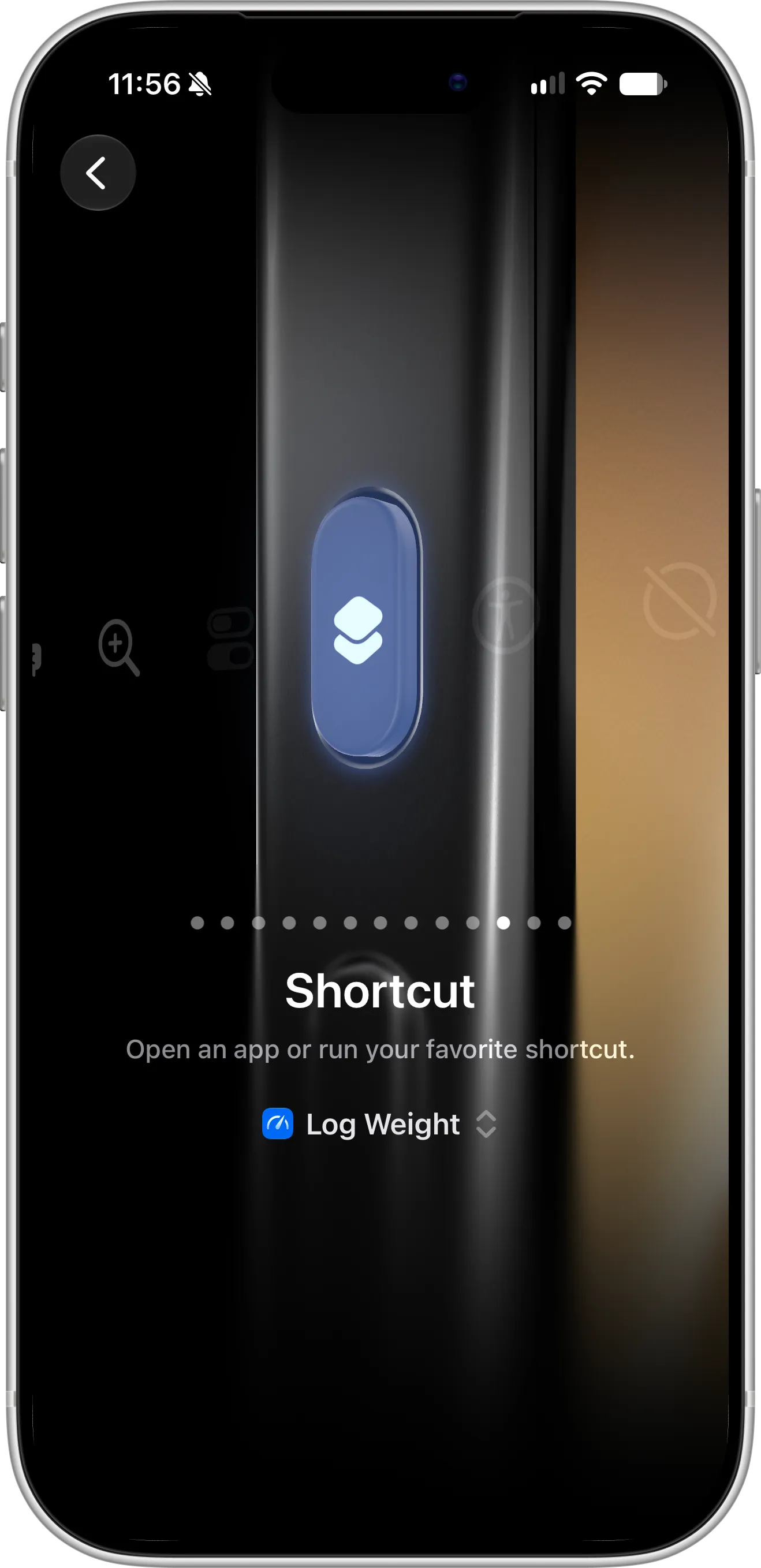
Assign Scaler’s Log Weight action to the Action button to log your weight with a single press.
From now on, press and hold the Action button to start a new weigh-in. A small window asks for your weight in the units you use in Scaler. Type the number from your scale on the keypad and tap Done. Your weigh-in is saved in seconds, without opening the app.
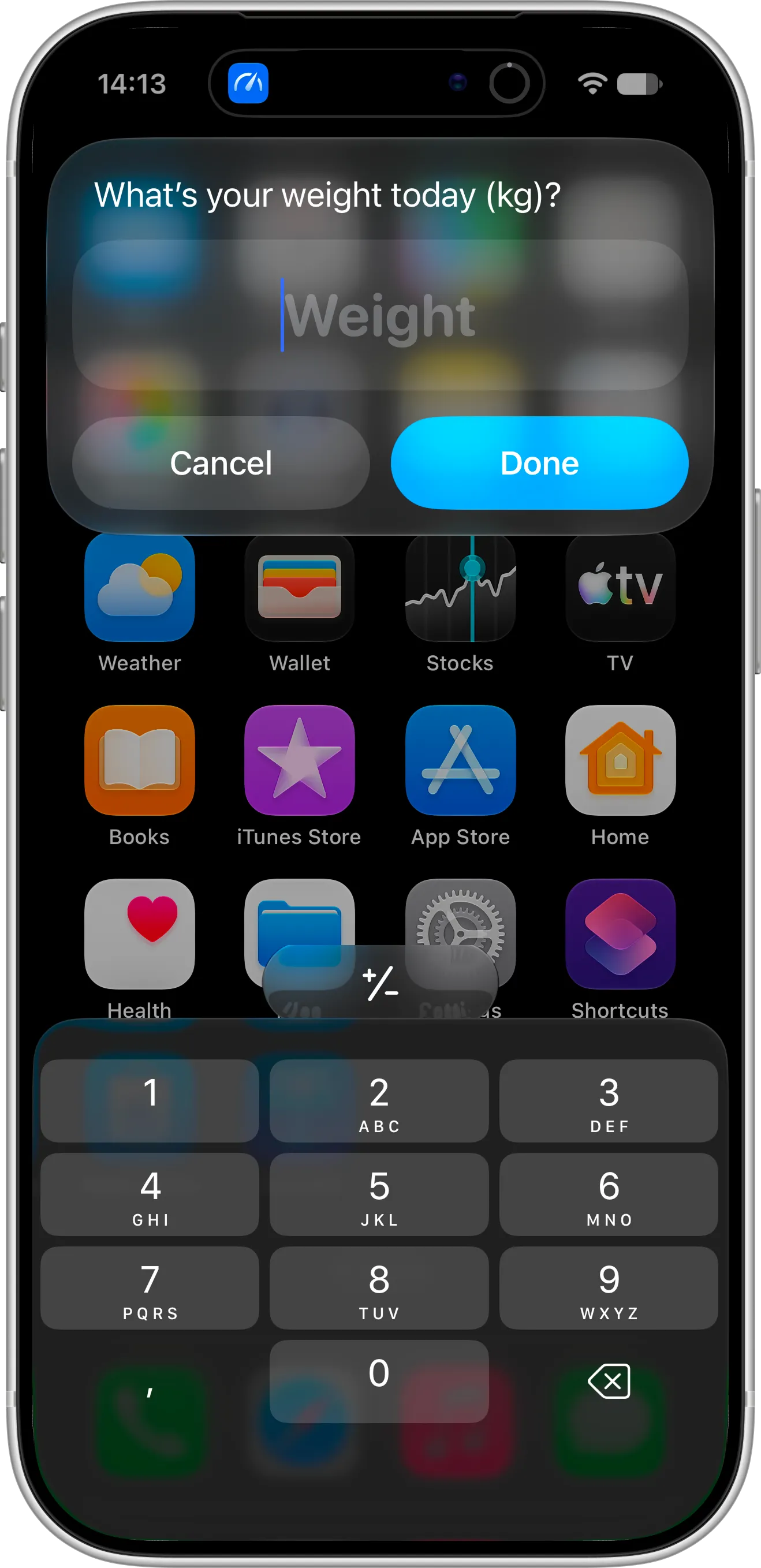
Log Weight asks for your weight in a small window over whatever you’re doing.
You’ll see the same window whenever you run Log Weight, whether from Spotlight, Back Tap or the Shortcuts app.
How To Log Your Weight from Spotlight
Spotlight works on any iPhone or iPad, and it needs no setup at all:
- Swipe down from the middle of the Home Screen to open Spotlight.
- Type “log weight”.
- Tap Scaler’s Log Weight shortcut in the results.
- Enter the number from your scale and tap Done.
How To Find Log Weight in the Shortcuts App
You don’t need to build anything yourself. As soon as Scaler is installed, its Log Weight shortcut appears in the Shortcuts app automatically:
- Open the Shortcuts app.
- Find Scaler in the list of apps and tap it.
- Tap Log Weight to start a new weigh-in.
This is the same ready-made shortcut you choose for the Action button, so there’s nothing else to set up. For a one-tap icon, touch and hold Log Weight and tap Add to Home Screen.
How To Log Your Weight with Back Tap
Back Tap runs a shortcut when you double- or triple-tap the back of your iPhone, and it works with most cases. Back Tap only lists shortcuts from your own collection, so first save Log Weight as your own shortcut:
- Open the Shortcuts app, find Scaler in the list of apps and tap it.
- Touch and hold Log Weight.
- Tap New Shortcut.
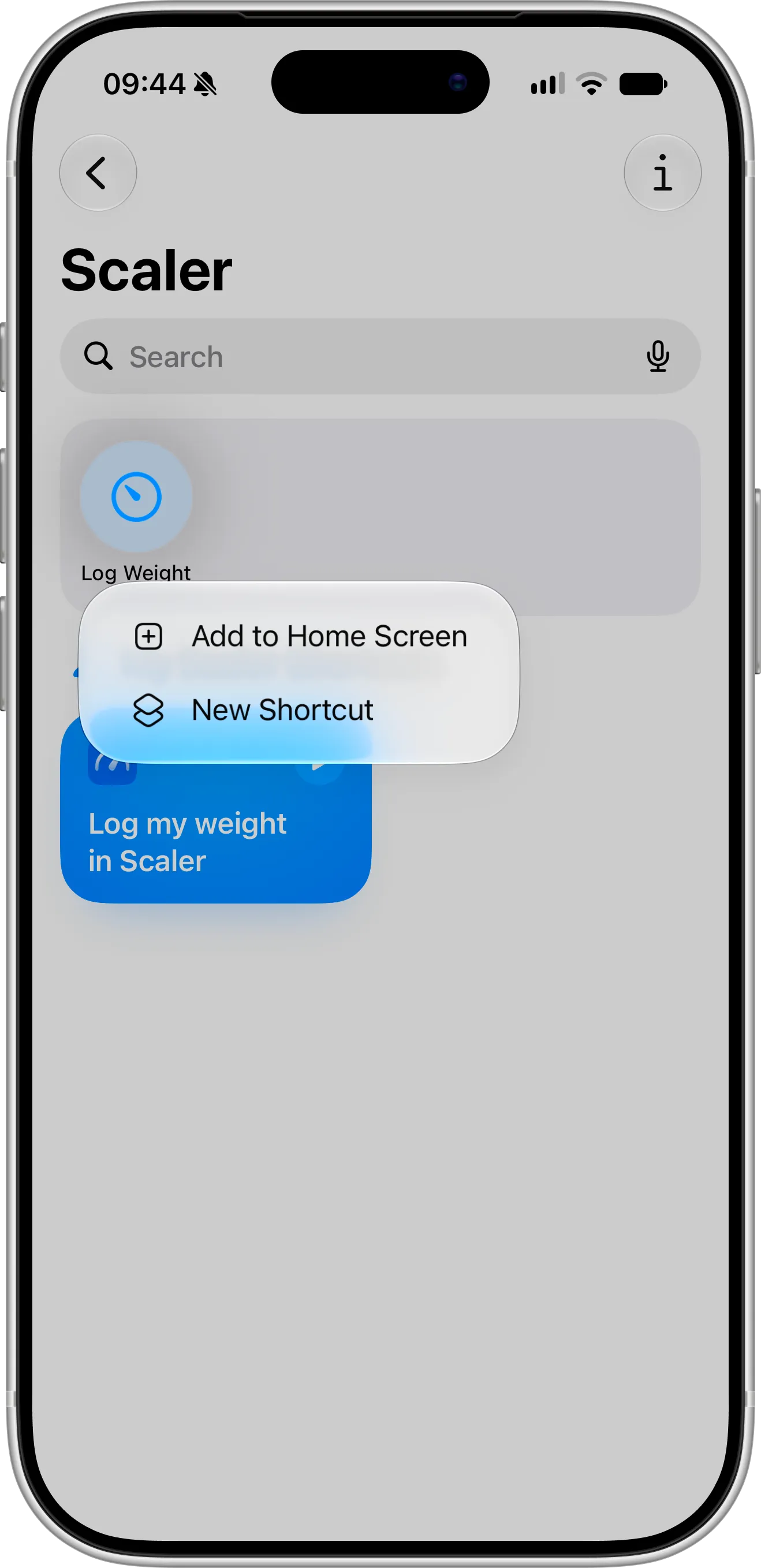
Tap New Shortcut to save Log Weight to your own collection, so you can assign it to Back Tap.
A new shortcut called “Log my weight in Scaler” is added to your collection.
Then assign it to Back Tap:
- Open the Settings app and tap Accessibility.
- Tap Touch, then scroll down and tap Back Tap.
- Choose Double Tap or Triple Tap.
- Scroll down to Shortcuts and select Log my weight in Scaler.
Now a double or triple tap on the back of your iPhone starts a new weigh-in, with no buttons or screens to find.
Tips for Logging Your Weight with Shortcuts
Pick the one method you’ll use every morning and keep it the same. If your iPhone has an Action button, it’s usually the best choice, because a new weigh-in is always a single press away. On other iPhones, Back Tap is just as quick, and on iPad, Spotlight is always a swipe away.
Shortcuts work well together with logging your weight with Siri for the days when your hands are full, and with Lock Screen widgets to see your updated trend right after you log a new entry. You can also start a weigh-in with Scaler’s Log Weight control in Control Center.
Troubleshooting
If something doesn’t work as expected, check these common causes:
- The app was just installed. Open Scaler once and log your first weight, then try again.
- Log Weight isn’t listed in Back Tap. Back Tap only shows shortcuts from your own collection, so touch and hold Log Weight in the Shortcuts app and tap New Shortcut first.
- Your iPhone doesn’t have an Action button. Use Back Tap or Spotlight instead.
Need Help or Have Feedback?
If you run into any issues, want to suggest new shortcut actions, or have questions about logging your weight with Shortcuts, you can always reach out through the contact page. Your feedback helps improve the weight tracker experience for everyone.
