
How to Export a PDF Weight Report: Share Your Progress with Your Doctor
Learn how to turn your weigh-ins into a printable PDF report for your doctor. Export your whole history, a single year or one month, with a summary, a trend chart and a log of every weigh-in.

When you see your doctor, dietitian or coach, “I think I’ve lost about ten kilos” is much less useful than the real numbers. A PDF weight report puts your whole story on a few pages: where you started, where you are now, how fast your weight is changing and every weigh-in along the way. You can print it, email it or bring it on your phone, and anyone can read it without installing an app.
The Scaler weight loss tracker creates this report for you in a couple of taps. You can export your whole history, a single year or just one month, depending on what your appointment is about.
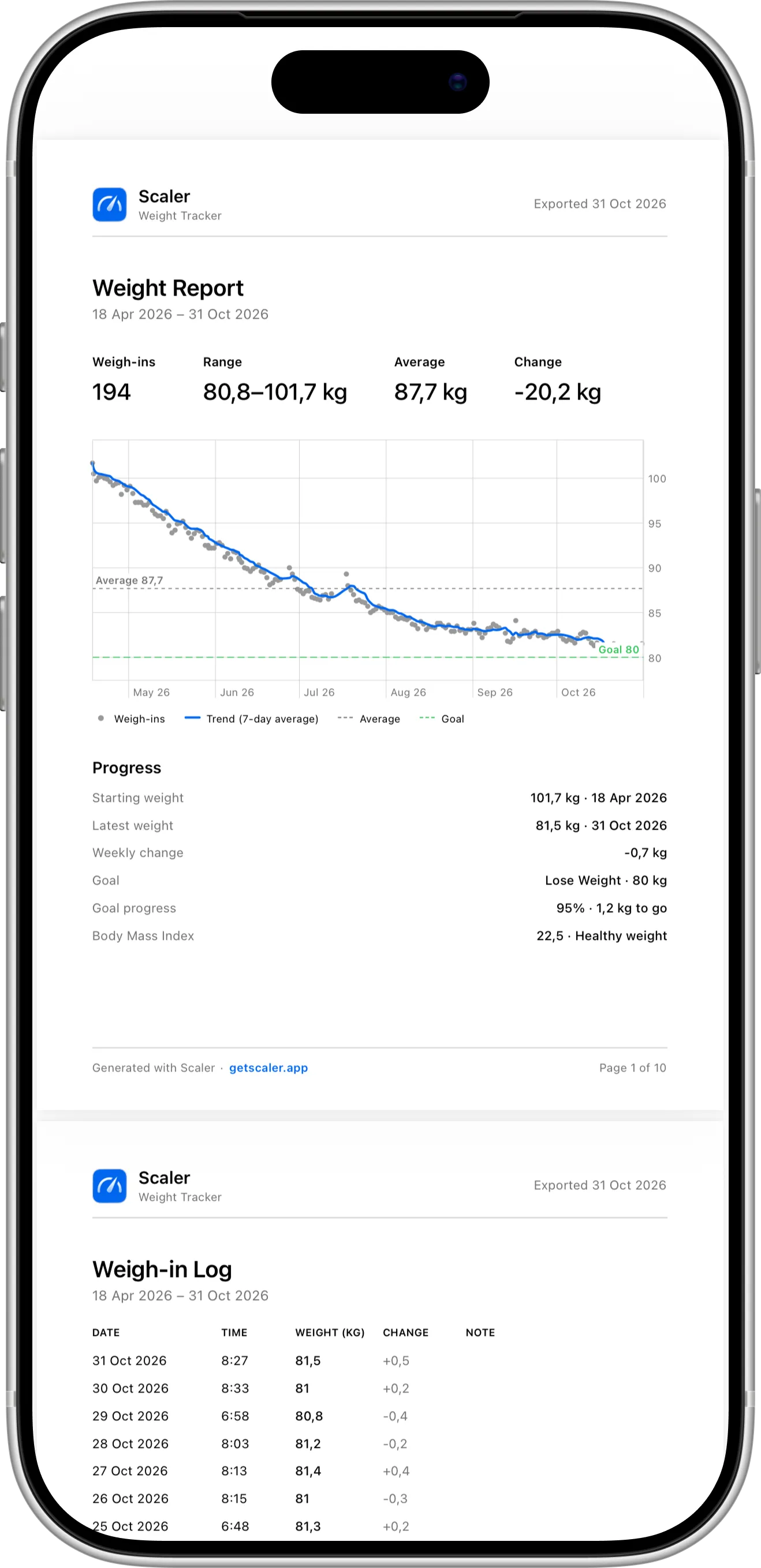
The first page of a Scaler PDF report: your key numbers, a weight chart with your trend and goal, and your progress with BMI, all on a single page.
What You Need Before Getting Started
To export a PDF report, you first need to download and install the Scaler weight loss tracker from the App Store. PDF reports are part of Pro and work on both iPhone and iPad. The report uses the weight unit you picked in Settings, so if your doctor prefers kilograms or pounds, switch the unit before you export.
For a complete report, set your height in Settings so the report can include your BMI, and set a goal so it can show your goal progress.
What’s Inside the Report
The first page gives your doctor the full picture at a glance:
- A summary of the period: the number of weigh-ins, your lowest and highest weight, your average and your total change.
- A weight chart with every weigh-in, your trend (a 7-day average), your average and your goal, so ups and downs from water weight don’t hide the real direction.
- Your progress: your starting and latest weight with their dates, your weekly change, your goal and how close you are to it.
- Your current BMI and its category.
The pages that follow hold the Weigh-in Log: every entry with its date, time, weight, the change from the previous weigh-in and your note. Each page shows the report period and the export date, so printed pages stay easy to follow.
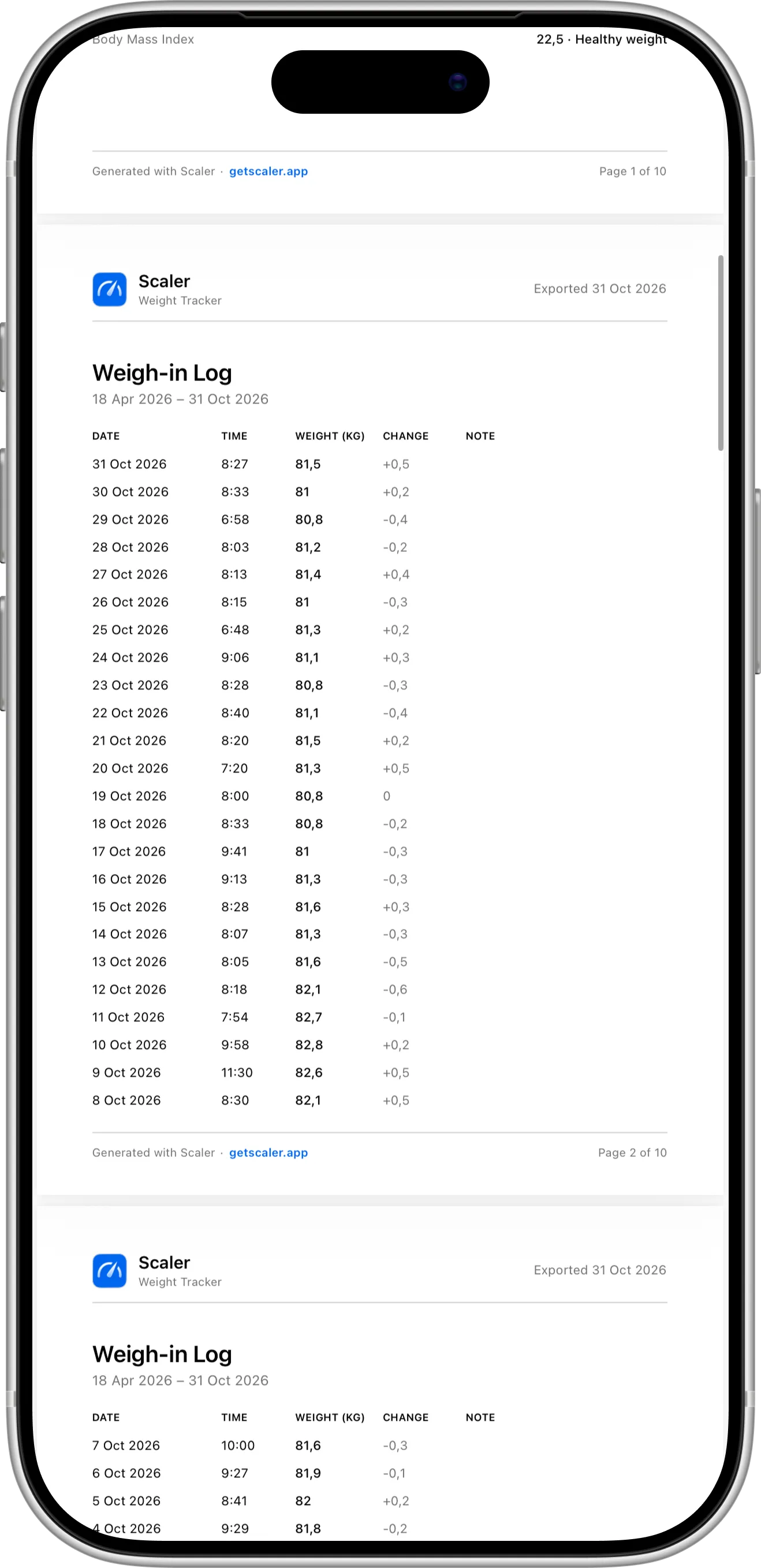
The Weigh-in Log lists every entry with its time and the change from the previous weigh-in, so your doctor can see the details behind the chart.
How To Export a Report for Your Whole History
Use this when you see a new doctor or want to show your progress from day one:
- Open Scaler and go to Settings.
- Tap Export Data.
- Choose PDF as the format.
- Tap Export Data and pick where to send the report: Mail, Messages, AirDrop, Files or Print.
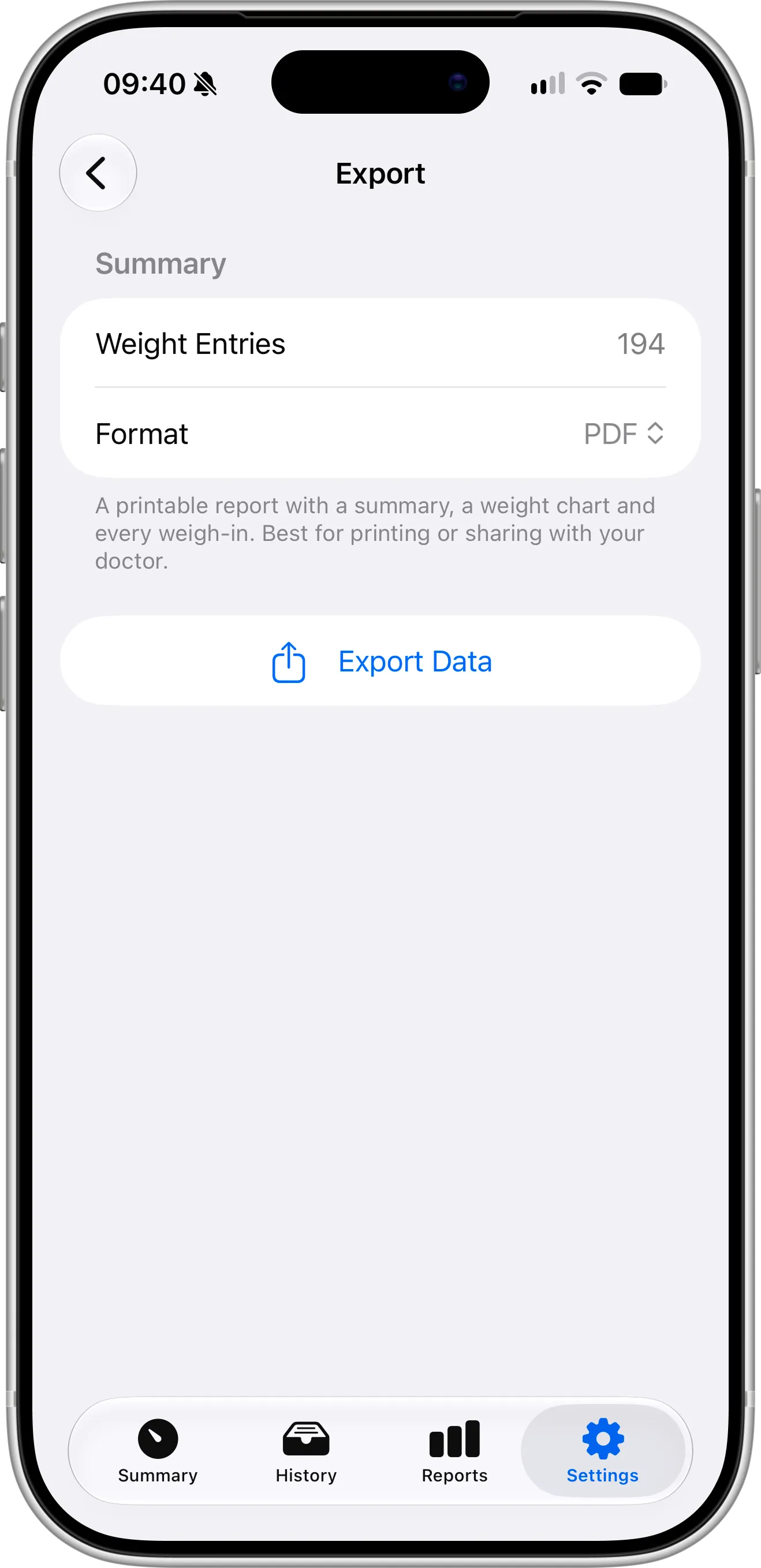
Export your whole weight history as a PDF report from Settings in just two taps.
How To Export a Report for a Year or a Month
Use this when your doctor asks about a specific period, such as the months since your last visit or how your year went:
- Open the Reports tab.
- Pick a month under Monthly, or a year under Annual.
- Tap the share button in the top-right corner.
- Choose PDF, then send, save or print the report.
The report covers only the period you opened, so the summary, chart and log all match that month or year. Learn more about what each report shows in monthly and annual weight reports.
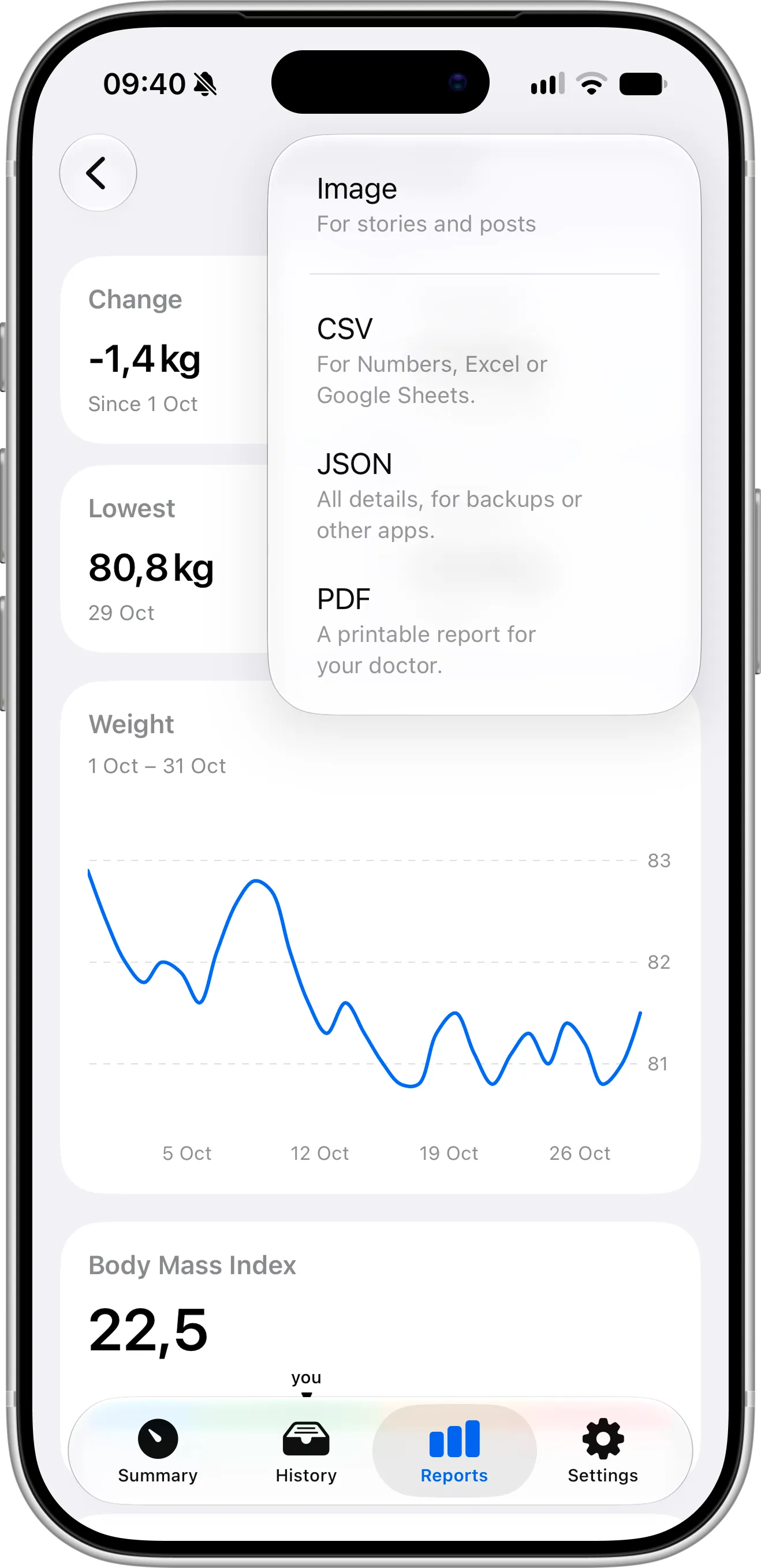
From any monthly or annual report, the share menu exports just that period as a PDF, ready for your next appointment.
Tips for Sharing Your Report with Your Doctor
Pick the period that fits your appointment. A monthly or annual report keeps the log short and focused on the time since your last visit, while your whole history is best for a first appointment with a new doctor.
For the most meaningful chart and averages, weigh yourself the same way every day, ideally in the morning before breakfast. If a weigh-in is unusual, add a note like “after a holiday” or “started new medication”. Notes appear in the log, so you don’t have to explain them from memory.
Many clinics accept files by email or through a patient portal, so try sending the report before your appointment. That way your doctor can look at it in advance.
Logging every day is easier when it takes just a few seconds. You can add a weigh-in with Siri, the Action button and Shortcuts or from Control Center, so your report is complete when you need it.
Prefer a Spreadsheet?
If your doctor or coach would rather work with the raw numbers, you can export your weigh-ins as a CSV file for free from the same Export Data screen or from a report’s share button. A CSV opens in Numbers, Excel or Google Sheets. JSON is also available if you want a complete backup of your data.
Need Help or Have Feedback?
If something in the report doesn’t look right, or you’d like to see something else in it for your next appointment, you can always reach out through the contact page. Your feedback helps improve the weight tracker experience for everyone.
