
How to Log Your Weight from Control Center on iPhone and iPad
Learn how to add Scaler's Log Weight control to Control Center and your Lock Screen. Start a new weigh-in with a swipe and a tap, enter the number from your scale, and save your progress in seconds.

Control Center is always one swipe away, which makes it a natural place for your weight tracker. With Scaler’s Log Weight control, you open Control Center, tap the control, and Scaler opens straight to the Log Weight screen. Enter the number from your scale, tap the checkmark, and your weigh-in is saved.
Because Control Center works the same way on every screen and in every app, logging your weight becomes a habit you don’t have to think about. The fewer steps a weigh-in takes, the easier it is to keep a consistent record and see your real progress over time.
What You Need Before Getting Started
To use the Log Weight control, you first need to download and install the Scaler weight loss tracker from the App Store. The control is free for all users and works on any iPhone with iOS 18 or later and any iPad with iPadOS 18 or later. Once the app is installed and you’ve logged your first weight, you can add the control in just a few steps.
How To Add the Log Weight Control to Control Center
Follow these steps to add Scaler’s Log Weight control to Control Center:
- Swipe down from the top-right corner of the screen to open Control Center.
- Tap the + button in the top-left corner, then tap Add a Control.
- Search for Scaler and tap Log Weight.
- Drag the control to where you want it, then tap anywhere outside the controls to save.
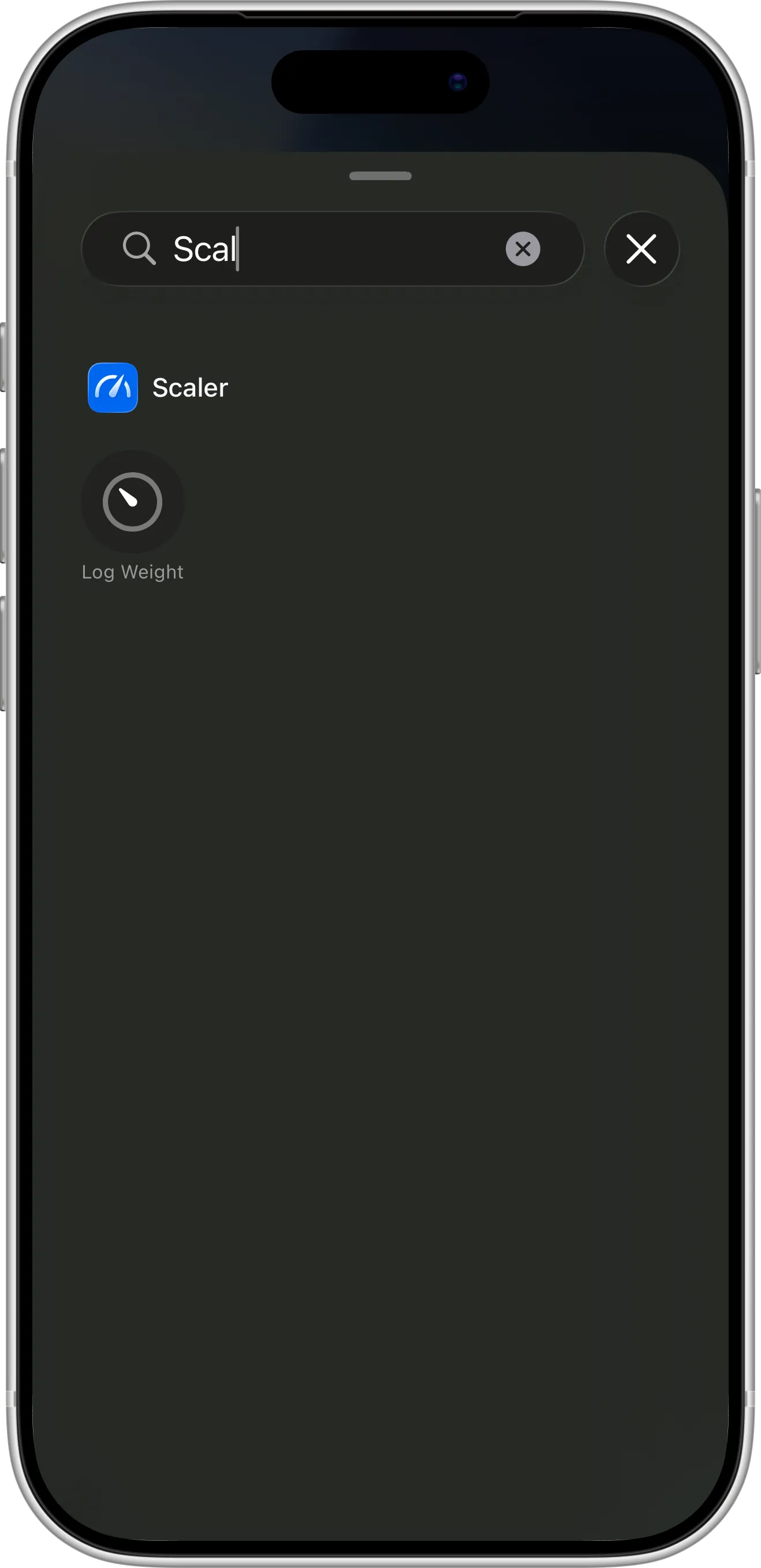
Search for Scaler in the controls gallery to find the Log Weight control.
While Control Center is in edit mode, you can also drag the corner of the control to make it larger, so the Log Weight label is always visible.
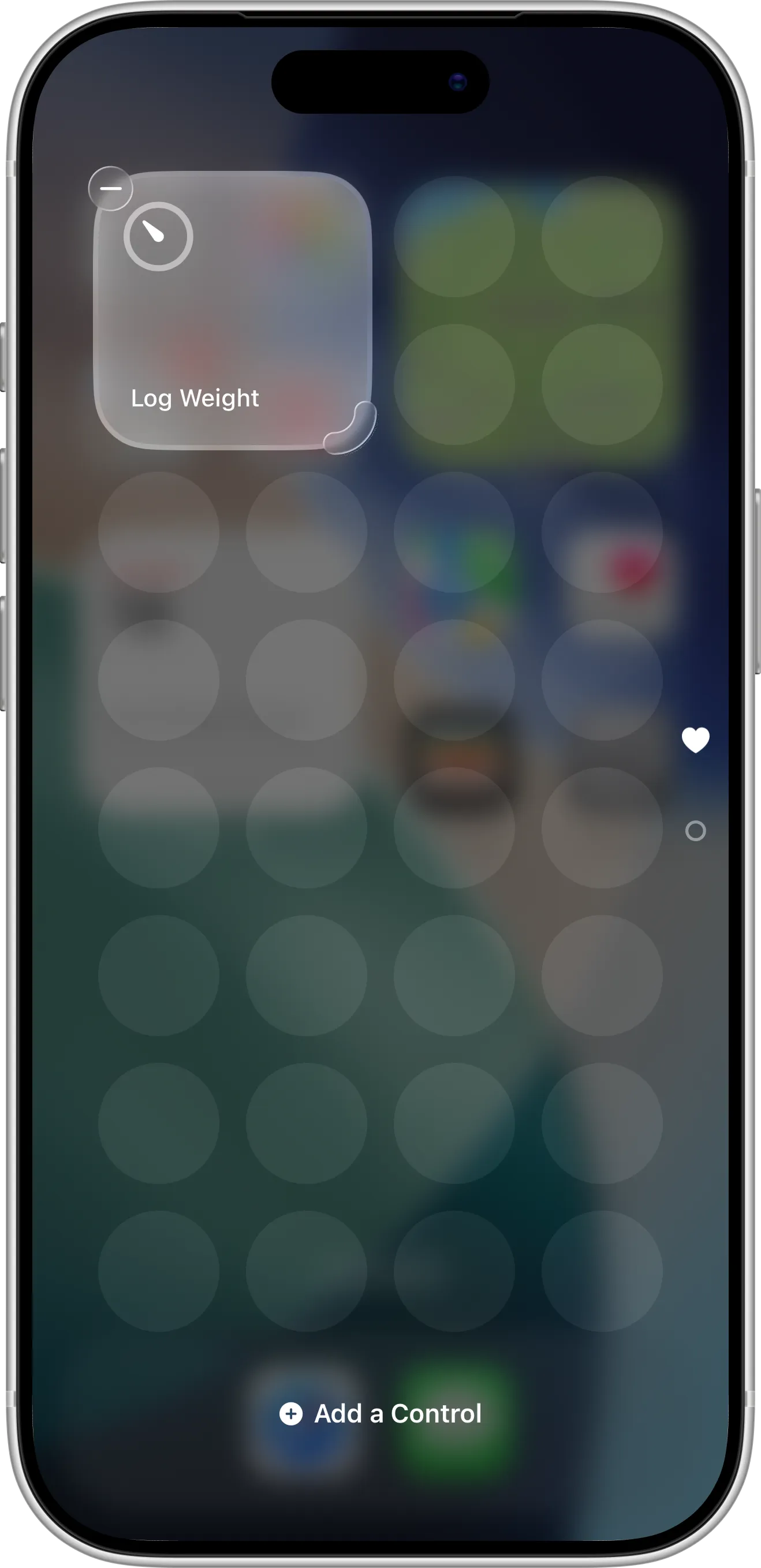
A larger Log Weight control keeps its label visible in Control Center.
How To Log Your Weight from Control Center
Once the control is added, logging your weight takes only a few seconds:
- Swipe down from the top-right corner of the screen to open Control Center.
- Tap the Log Weight control. Scaler opens the Log Weight screen with today’s date and time already filled in.
- Type the number from your scale. You can also add a note if you like.
- Tap the checkmark to save your weigh-in.
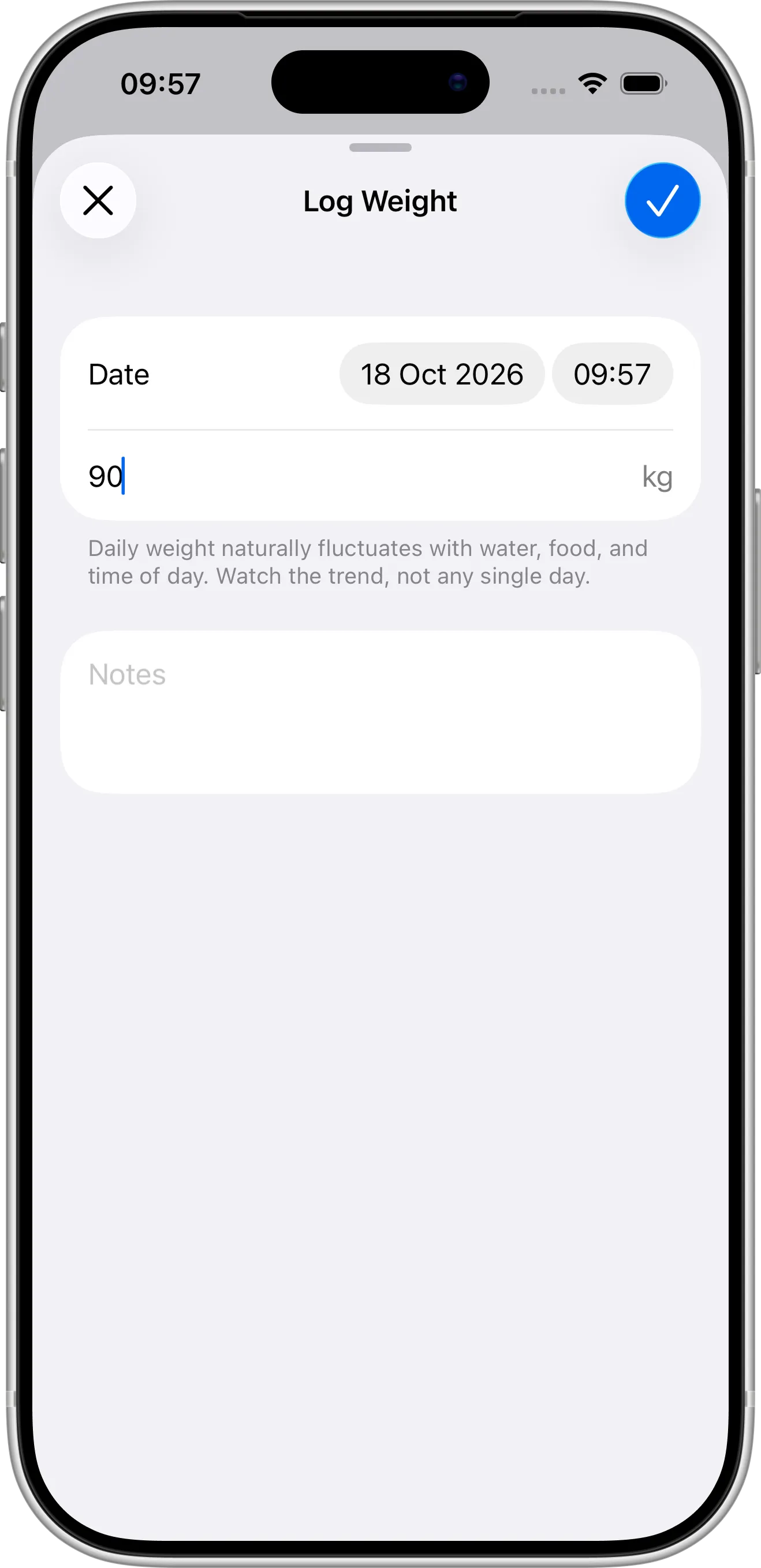
Log Weight opens straight to a new entry with today’s date and time filled in.
Your new entry is saved exactly like one you add inside the app. Your trend weight, progress charts, goal and check-in streak update right away, and so do your Home Screen and Lock Screen widgets.
How To Add the Log Weight Control to Your Lock Screen
You can also replace one of the two buttons at the bottom of your iPhone Lock Screen, such as the flashlight or camera, with the Log Weight control:
- Touch and hold the Lock Screen until the Customize button appears, then tap Customize.
- Tap Lock Screen.
- Tap the − button on the control you want to replace.
- Tap the + button in its place, then search for Scaler and tap Log Weight.
- Tap Done to save your changes.
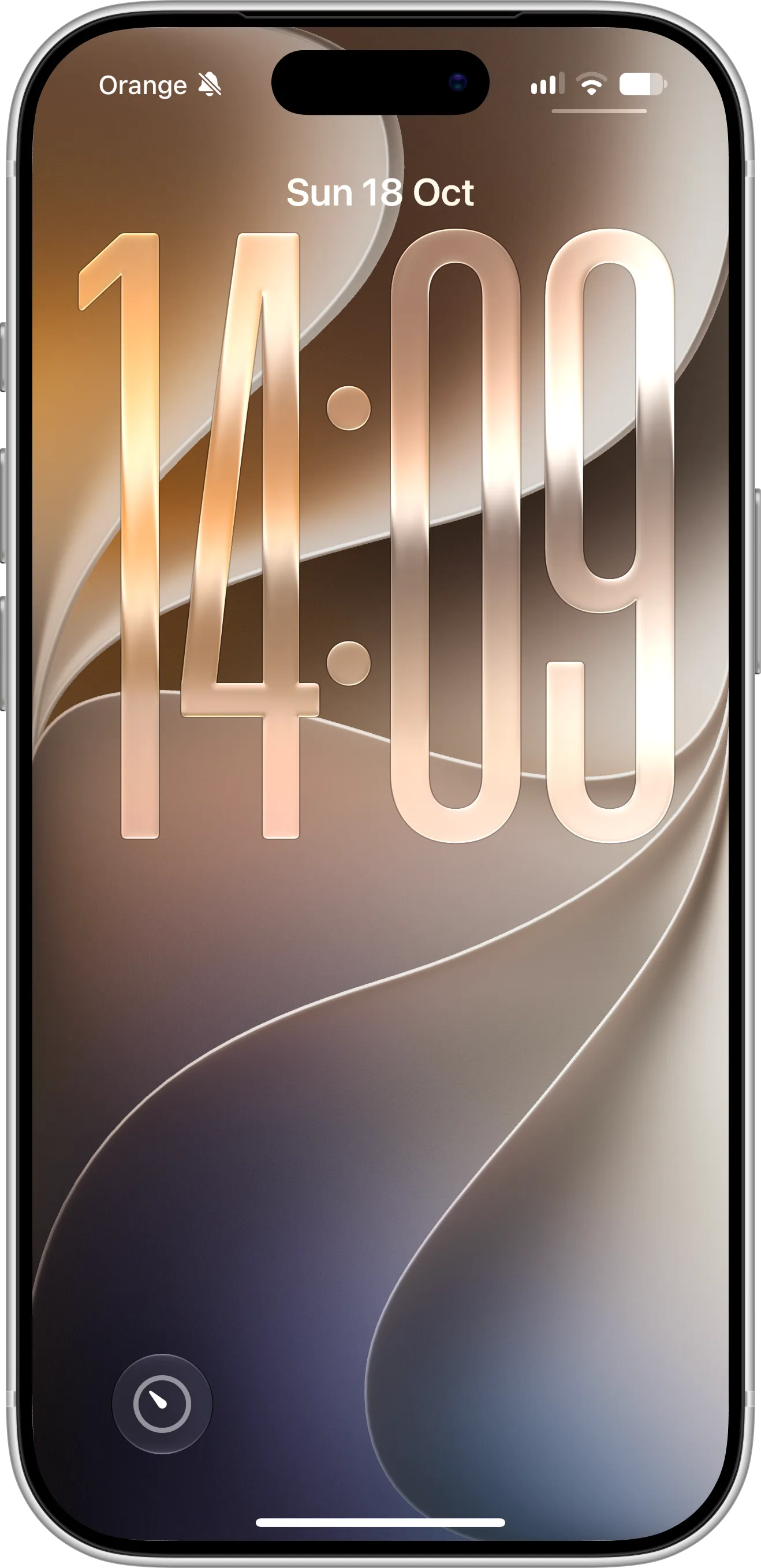
With Log Weight on your Lock Screen, a new weigh-in is one touch and hold away.
From now on, touch and hold the Log Weight button on your Lock Screen to start a new weigh-in.
Tips for Logging Your Weight from Control Center
For the best results, weigh yourself at the same time each day, ideally in the morning before breakfast, and log the number right after you step off the scale. Placing the Log Weight control on the first page of Control Center, or on your Lock Screen, keeps it within reach every morning.
The Log Weight control works well together with Lock Screen widgets to see your updated trend right after you log a new entry. If you prefer other ways to log, you can also use Siri or the Action button and Shortcuts.
Troubleshooting
If you can’t find the Log Weight control, check these common causes:
- Scaler isn’t up to date. Update Scaler to the latest version from the App Store.
- Your iPhone or iPad runs an older version of iOS. Controls in Control Center and on the Lock Screen require iOS 18 or iPadOS 18 or later.
- The app was just installed. Open Scaler once and log your first weight, then try again.
Need Help or Have Feedback?
If you run into any issues, want to suggest improvements, or have questions about the Log Weight control, you can always reach out through the contact page. Your feedback helps improve the weight tracker experience for everyone.
