
How to Set Up Lock Screen Widgets: Quick Weight Tracking Tips
Discover how lock screen widgets give instant access to your weight progress. See where you stand without opening the app, stay mindful of your goal throughout the day, and make weight tracking easier.

Lock Screen widgets bring your weight tracker closer to your everyday routine by placing your weight progress directly on your iPhone Lock Screen. Instead of opening the app to check how you’re doing, you can instantly see where you stand and stay mindful of your goal throughout the day.
By keeping your progress visible at all times, Lock Screen widgets reduce friction and make weight tracking feel more natural and effortless. A single glance is often enough to remind you of your goal, reinforce healthy choices, and keep you motivated without distractions.
What You Need Before Getting Started
To use Lock Screen widgets in our weight tracker, you first need to download and install the app from the App Store. Lock Screen widgets are free for all users and are designed to keep your progress in view throughout the day. Once the app is installed and you’ve logged your first weight, you can add and customize widgets in just a few steps.
How To Add a Lock Screen Widget
Follow these steps to add a weight tracker widget to your Lock Screen:
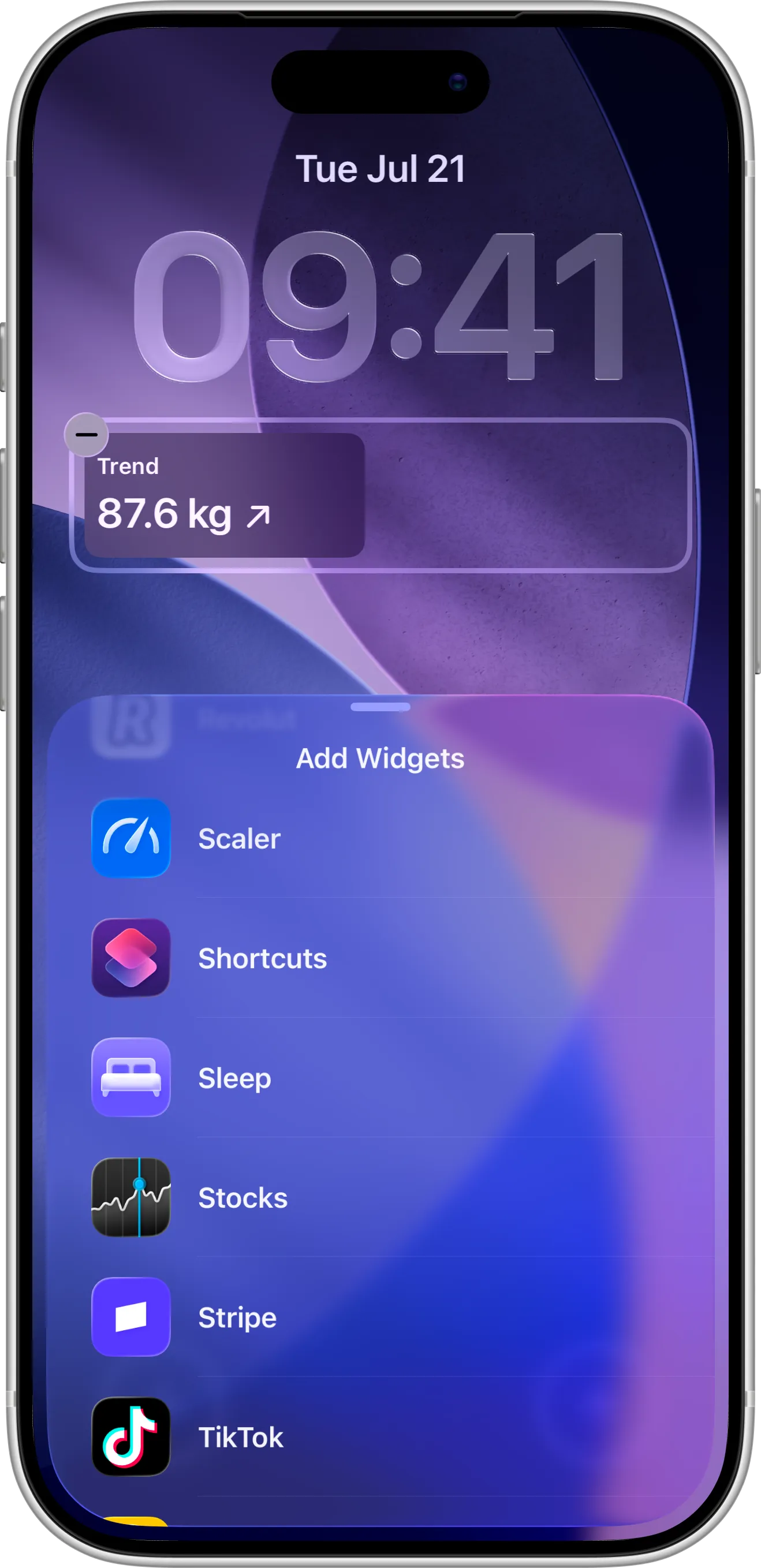
- Touch and hold the Lock Screen until the Customize button appears, then tap Customize.
- Tap the widget area below the time.
- Find the Scaler weight loss tracker in the widget list.
- Choose a widget size and tap it to add it to your Lock Screen.
- Tap Done to save your changes.
How To Configure the Widget
Once the widget is on your Lock Screen, you can adjust what it shows:
- Tap the widget while still in edit mode.
- Choose the information you want to see.
- Confirm your selection.
Once configured, the widget will display your latest weight progress and update every time you log a new entry.
Tips for Using Lock Screen Widgets Effectively
For the best experience, keep the widget focused on the number that motivates you most, such as your progress toward your goal weight. Placing the widget where it’s easy to notice keeps your weight tracker visible throughout the day and encourages regular weigh-ins.
Lock Screen widgets work especially well when combined with a consistent weigh-in routine, such as logging your weight at the same time each morning. Using both together reduces friction, keeps your goal top of mind, and makes long-term progress easier to see.
Need Help or Have Feedback?
If you run into any issues, want to suggest improvements, or have questions about widgets, you can always reach out through the contact page. Your feedback helps improve the weight tracker experience for everyone.