
How to Set Up Home Screen Widgets: Maximize Weight Tracking
Learn how to add home screen widgets to see your weight progress at a glance. Keep your goal visible throughout the day, stay motivated, and never lose track of your progress.

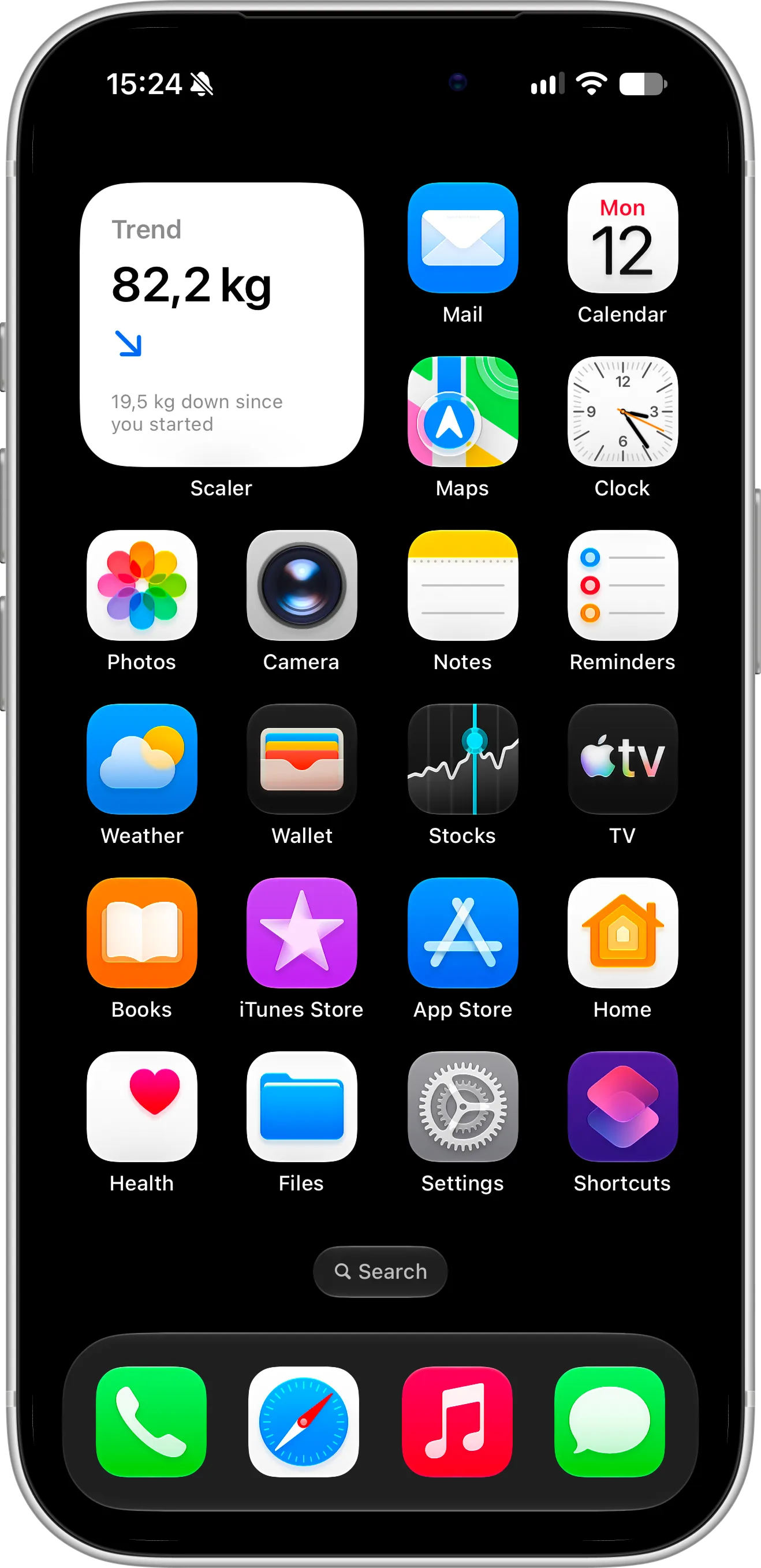
Home Screen widgets bring your weight tracker into your daily workflow by keeping your progress visible directly on your iPhone Home Screen. Instead of relying on memory or opening the app intentionally, your weight trend stays present as part of your normal phone usage.
By placing your progress alongside your apps, Home Screen widgets help reinforce healthy routines throughout the day. Seeing how far you’ve come can act as a gentle reminder, making weight tracking feel more integrated, natural, and easy to maintain over time.
What You Need Before Getting Started
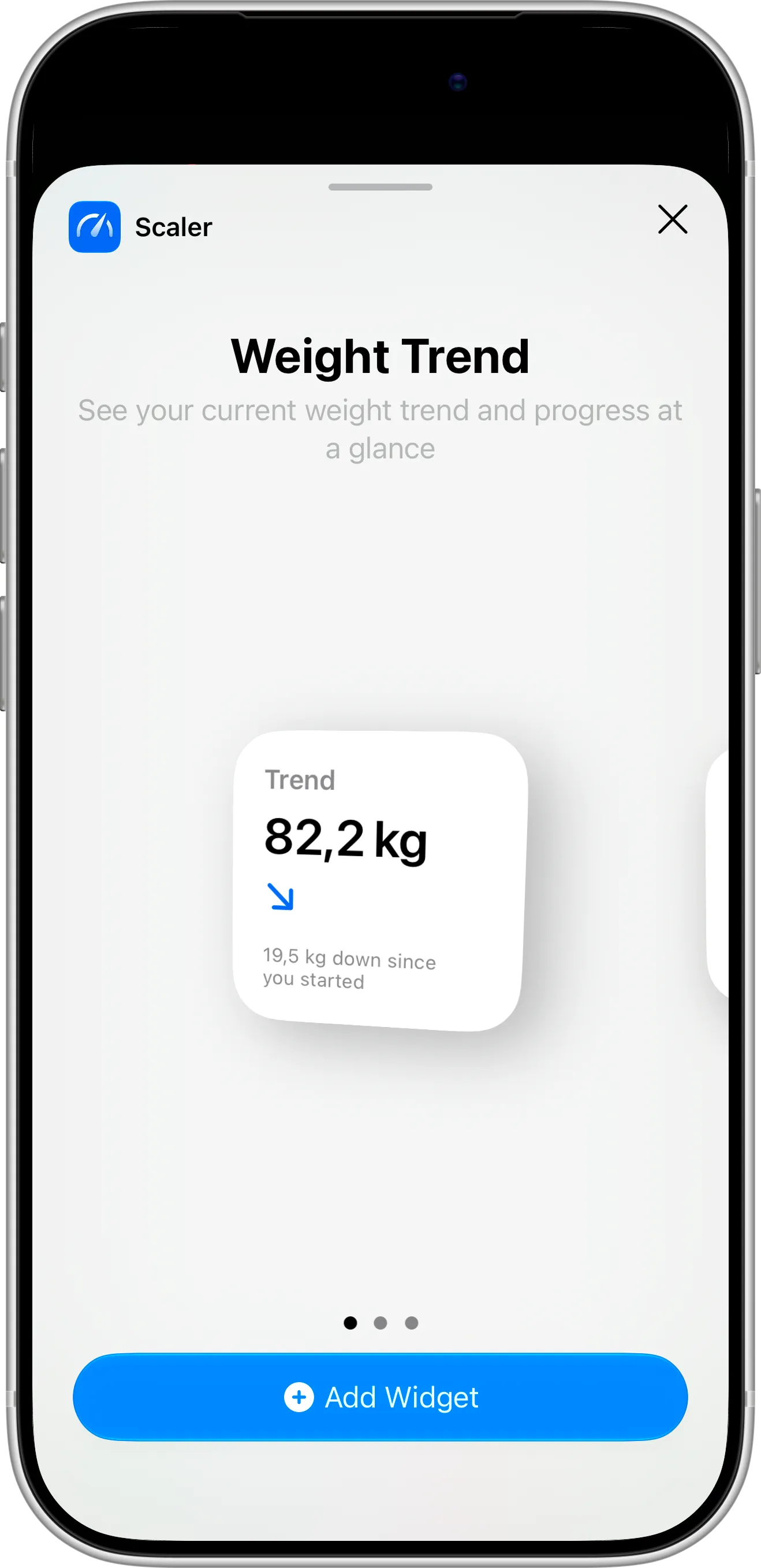
To use Home Screen widgets in our weight tracker, you first need to download and install the app from the App Store. One Home Screen widget is free for all users, and two more widget designs are included in the Pro version. All of them are designed to keep your progress visible every day. Once the app is installed and you’ve logged your first weight, you can add and customize Home Screen widgets in just a few simple steps.
How To Add a Home Screen Widget
Follow these steps to add a weight tracker widget to your Home Screen:
- Touch and hold anywhere on your Home Screen until the apps start to jiggle.
- Tap the + button in the top-left corner.
- Search for the Scaler weight loss tracker in the widget list.
- Swipe to choose one of the three widget designs and tap Add Widget.
- Position the widget where you want it on your Home Screen.
- Tap Done to save your layout.
How To Configure the Widget
Once the widget is on your Home Screen, you can adjust what it shows:
- Touch and hold the widget on your Home Screen.
- Tap Edit Widget.
- Choose the information you want to see.
- Confirm your selection.
Once configured, the widget will display your up-to-date weight progress and update every time you log a new entry.
Tips for Using Home Screen Widgets Effectively
For best results, place your Home Screen widget on a screen you visit frequently, such as your main Home Screen. Seeing your trend and your distance to your goal several times a day keeps you motivated and makes regular weigh-ins feel effortless.
Home Screen widgets work especially well when paired with a consistent weigh-in routine and regular check-ins on your progress charts inside the app. Keeping your progress visible alongside daily apps helps reduce friction, maintain focus, and build habits that last.
Need Help or Have Feedback?
If you run into any issues, want to suggest improvements, or have questions about widgets, you can always reach out through the contact page. Your feedback helps improve the weight tracker experience for everyone.